Start with an idea instead of a finished script
Describe a character, a setting, and what happens next. Add a tone such as uplifting, mysterious, or fantastical. The AI writes the narration from your premise, so you can start with a few sentences.
Faceless.video’s AI story video generator turns a short prompt into a narrated faceless video with an AI-written story, generated image scenes, and captions. Describe your characters, setting, and plot, then choose realistic, fantasy, 3D animation, or storybook visuals. Create short stories for YouTube Shorts, TikTok, and Instagram Reels without writing a complete script.
Start with a premise and choose a look. AI will build the narration from your idea.
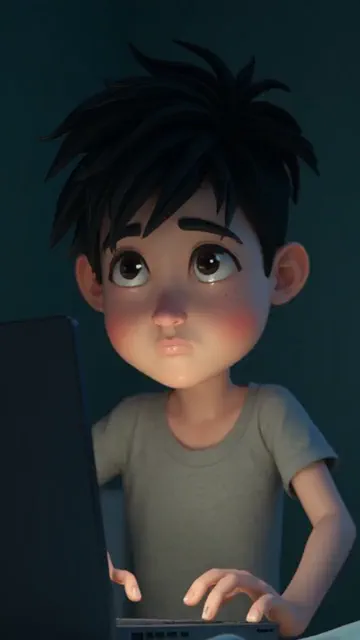
Describe what happens, choose a visual style, and let the story flow build the narration from your premise.
Choose a character, a setting, and a challenge. Add the tone or ending you have in mind.
Choose realistic, 3D animation, fantasy, or storybook visuals to fit the story.
Your premise and image style carry over. Review narration and delivery settings before generating.
Build a narrated video around a character, a setting, and a twist. Shape the story before moving into the creator.
Describe a character, a setting, and what happens next. Add a tone such as uplifting, mysterious, or fantastical. The AI writes the narration from your premise, so you can start with a few sentences.
Turn your premise into a script, voiceover, AI image scenes, and captions. Your prompt and chosen visual style carry into the creator, ready for you to review before generating.
Choose realistic imagery for everyday settings, fantasy for imagined worlds, 3D animation for a stylized look, or storybook for an illustrated feel. Your selection carries into the creator with your idea.
Try an uplifting encounter, an unexplained discovery, or a journey into a new world. Add the tone and audience to your prompt so the generated narration has a clear direction from the start.
This image illustrates one possible look for an AI image story. Your own premise and selected style shape the narrated video you create.
It starts a narrated AI image story from your premise, with image scenes and captions in a vertical video. This is an image-based story format, rather than a continuous live-action scene.
No. Describe your idea and any instructions for the plot or tone. The story flow writes the narration from that prompt. Use Text to Video if you want to supply a finished script.
No. You can make fantasy, mystery, uplifting fiction, or other short stories. The separate Scary Story tool offers a horror-focused set of visual choices.
Yes. Continuing opens the AI Image Story flow with your custom prompt and chosen image style filled in. You can review and change the settings there.
No. It opens the creation flow. Review the settings and the displayed credit cost before starting generation; generation requires an account and sufficient credits.
The creation flow supports scheduling a series and connecting supported social accounts. Choose delivery and scheduling settings there before creating the series.
Still have a question? Get in touch
Choose the starting point that fits your content. Each tool takes your idea into the Faceless.video creator.
Choose your content, connect your social account, and set a daily schedule. Faceless.video automatically creates and posts a new video every day, keeping your channel active while you focus on other things.
Start with a script, story idea, character, or first-person scenario. Explore more video styles in the creator and choose the format that fits your content.
Set up a series, choose a daily schedule, and let Faceless.video keep creating videos for your channel automatically. You can review and edit the drafts whenever you want to add your own touches.
Connect your TikTok, YouTube, or Instagram account and enable auto-posting. Faceless.video creates and publishes videos on your daily schedule, so your channel keeps posting without a daily upload. Scheduling and connected-account options depend on your plan.